
All Images Downloader
Scan images on a webpage, including many lazy-loaded and blob/data sources, preview the results, filter by size and export selected images or create a PDF.
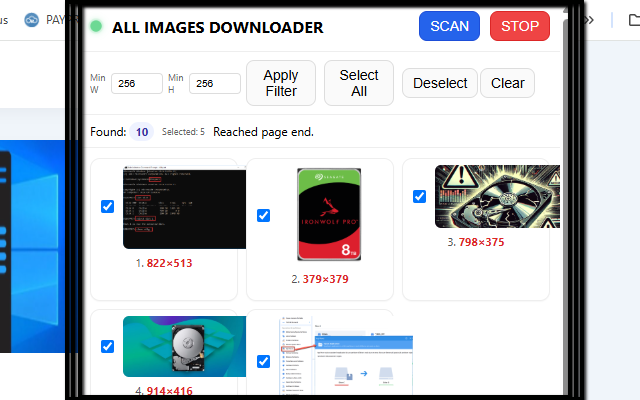
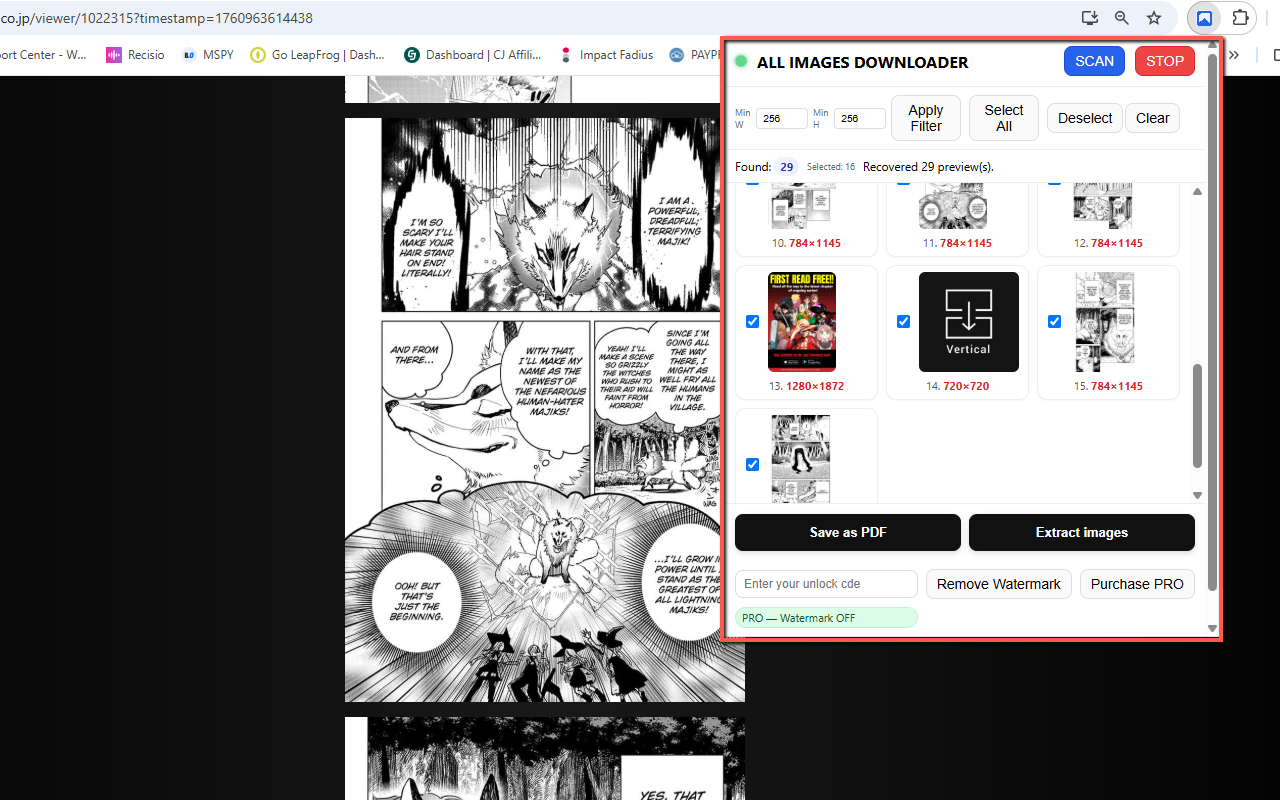
All Images Downloader scans the current webpage for images and presents the results in a visual gallery. From there you can filter by size, select the items you need and either download the image files or create a PDF from the selected images.
Modern websites do not always use simple <img src> elements. Images may be lazy-loaded, inserted dynamically, referenced through blob: or data: URLs, or loaded only after scrolling. The extension is designed to handle several of these common cases and update the preview while scanning.
How to download all images from a webpage
- Install All Images Downloader from the Chrome Web Store.
- Open the webpage containing the images you want to review.
- Open the extension and start the scan.
- Allow the auto-scroll process to reveal lazy-loaded content when needed.
- Use minimum width and height filters to hide small icons or thumbnails.
- Select the images you want.
- Choose whether to download the original image files or create a PDF.
Why some webpages need auto-scrolling
Lazy loading reduces page load time by requesting images only when they get close to the visible area. On a long page, this means many images may not exist in the page until you scroll. Auto-scrolling helps trigger those images so they can appear in the extension's gallery.
Image sources the extension can work with
- Standard HTTP/HTTPS image URLs.
- Many
blob:anddata:image sources. - Images inserted dynamically while a page is open.
- Lazy-loaded images revealed during scrolling.
- Selected page images that can be combined into a PDF.
Filters and selection
Pages often contain many small assets such as logos, icons, tracking pixels and thumbnails. Minimum width and height filters make it easier to focus on larger images. You can then select all matching items or choose images individually before export.
Download images or create a PDF?
| Download images | Save as PDF |
|---|---|
| Keeps separate image files | Combines selected images into one document |
| Better for editing or organizing photos | Better for sequential reading or archiving |
| Original format when accessible | Convenient single-file output |
📷 Screenshots
Permissions and privacy
- activeTab — access the current page when you start a scan.
- scripting — run the page scanner when required.
- downloads — save selected images or generated files.
- storage — remember settings and local extension data.
- Host permissions — allow the extension to work across websites where access is permitted.
According to the product's current design, image scanning and export work locally in the browser. Some websites can still prevent an image from being read or embedded because of browser security restrictions, authentication or cross-origin rules.
Responsible use
Download only images you own, images you have permission to save, public-domain material, or other content whose use is permitted. A tool being technically able to detect an image does not change copyright or website terms.
FAQ
Why are some images missing?
They may not have loaded yet, may require interaction or authentication, or may be blocked by browser security restrictions.
Can it find lazy-loaded images?
The scanner can auto-scroll to reveal many images that load only when they approach the viewport.
Can I create one PDF from selected images?
Yes. The product supports a PDF export workflow in addition to downloading image files.
Does it work on every image on every site?
No. Browser security rules and the way a site renders content can limit what any extension can access.